
Settings & API Keys
The Settings page lets you manage your workspace configuration, team members, connector repositories, notification channels, and API keys.
Workspace Settings
Section titled “Workspace Settings”Name and Preferences
Section titled “Name and Preferences”- Go to Settings > General.
- Update the workspace name or other preferences.
- Click Save.
The workspace name appears in the sidebar, notifications, and exported configurations. Choose something descriptive, especially if your organization uses multiple workspaces (e.g., Production, Staging, Analytics).
Members
Section titled “Members”Manage who has access to your workspace and what they can do.
Viewing Members
Section titled “Viewing Members”Go to Settings > Members to see all current workspace members, their email addresses, and their roles.
Inviting Members
Section titled “Inviting Members”- Click Invite Member.
- Enter the user’s email address.
- Select a role: Admin, Editor, or Viewer.
- Click Send Invite.
The user receives an email with an invitation link containing a unique token. They can accept the invite to join the workspace. If they do not have a Synclet account yet, they will be prompted to create one (unless registration is disabled). You can also resend or revoke pending invitations from the members list.
Changing Roles
Section titled “Changing Roles”- Find the member in the list.
- Click the role dropdown next to their name.
- Select the new role.
Role changes take effect immediately.
Removing Members
Section titled “Removing Members”- Find the member in the list.
- Click Remove and confirm.
Removed members lose access to the workspace immediately. Their past actions (created connections, triggered syncs) remain in the history.
For a detailed explanation of what each role can do, see Workspaces & Roles.
Connector Repositories
Section titled “Connector Repositories”Synclet discovers connectors from registries. Every new workspace gets two: Airbyte’s public OSS registry and Synclet’s own.
Default Registries
Section titled “Default Registries”Airbyte OSS lists the source and destination connectors Airbyte publishes. Synclet (https://synclet-io.github.io/connectors/registry.json) lists the MIT-licensed Go connectors from synclet-io/connectors. Both are added when the workspace is created and need no configuration; you can remove either. Most of Airbyte’s connectors are under ELv2 since 2025-07-22; read Connector licenses before you rely on one.
Adding a Custom Repository
Section titled “Adding a Custom Repository”If you maintain custom connectors or use a private registry:
- Go to Settings > Connectors and switch to the Repositories tab.
- Click Add Repository.
- Pick a repository preset (or choose a custom URL), enter the URL, and provide any required authentication header.
- Click Save.
Custom connectors appear alongside default connectors when adding sources and destinations. Custom registries are checked in addition to the default registry.
Notifications
Section titled “Notifications”Manage your workspace’s notification channels and rules from Settings > Notifications. From here you can:
- View all configured channels (Slack, Email, Telegram).
- Add, edit, or delete channels.
- Test a channel to verify it works.
- Create notification rules that link channels to connections and events.
For outbound HTTP integrations (e.g., calling external systems on sync events), see Settings > Webhooks.
For detailed setup instructions, see the Notifications guide.
API Keys
Section titled “API Keys”API keys provide programmatic access to the Synclet API, scoped to the workspace where they are created.
Creating an API Key
Section titled “Creating an API Key”- Go to Settings > API Keys.
- Click Create API Key.
- Enter a descriptive name (e.g.,
github-actions,terraform-pipeline). - Copy the key immediately — it is displayed only once.
Permissions
Section titled “Permissions”API keys inherit the permissions of the user who created them, scoped to the current workspace:
| Creator’s Role | API Key Can |
|---|---|
| Admin | Full access — manage settings, members, sources, destinations, connections. |
| Editor | Create and modify sources, destinations, and connections. Cannot manage members or settings. |
| Viewer | Read-only access to configurations, job history, and logs. |
Using an API Key
Section titled “Using an API Key”Include the key in the Authorization header:
curl -H "Authorization: Bearer synclet_sk_your_api_key_here" \ https://synclet.example.com/api/v1/connectionsCommon CI/CD Use Cases
Section titled “Common CI/CD Use Cases”API keys are ideal for automation:
# Trigger a sync from a CI/CD pipelinecurl -X POST \  -H "Authorization: Bearer $SYNCLET_API_KEY" \  https://synclet.example.com/api/v1/connections/{id}/sync
# Check connection health in a deployment scriptcurl -s -H "Authorization: Bearer $SYNCLET_API_KEY" \  https://synclet.example.com/api/v1/connections/{id} \  | jq '.status'
Revoking an API Key
Section titled “Revoking an API Key”- Go to Settings > API Keys.
- Find the key and click Revoke.
- Confirm the action.
Revoked keys stop working immediately. Store the key value securely — if compromised, revoke and create a new one.
Audit Log
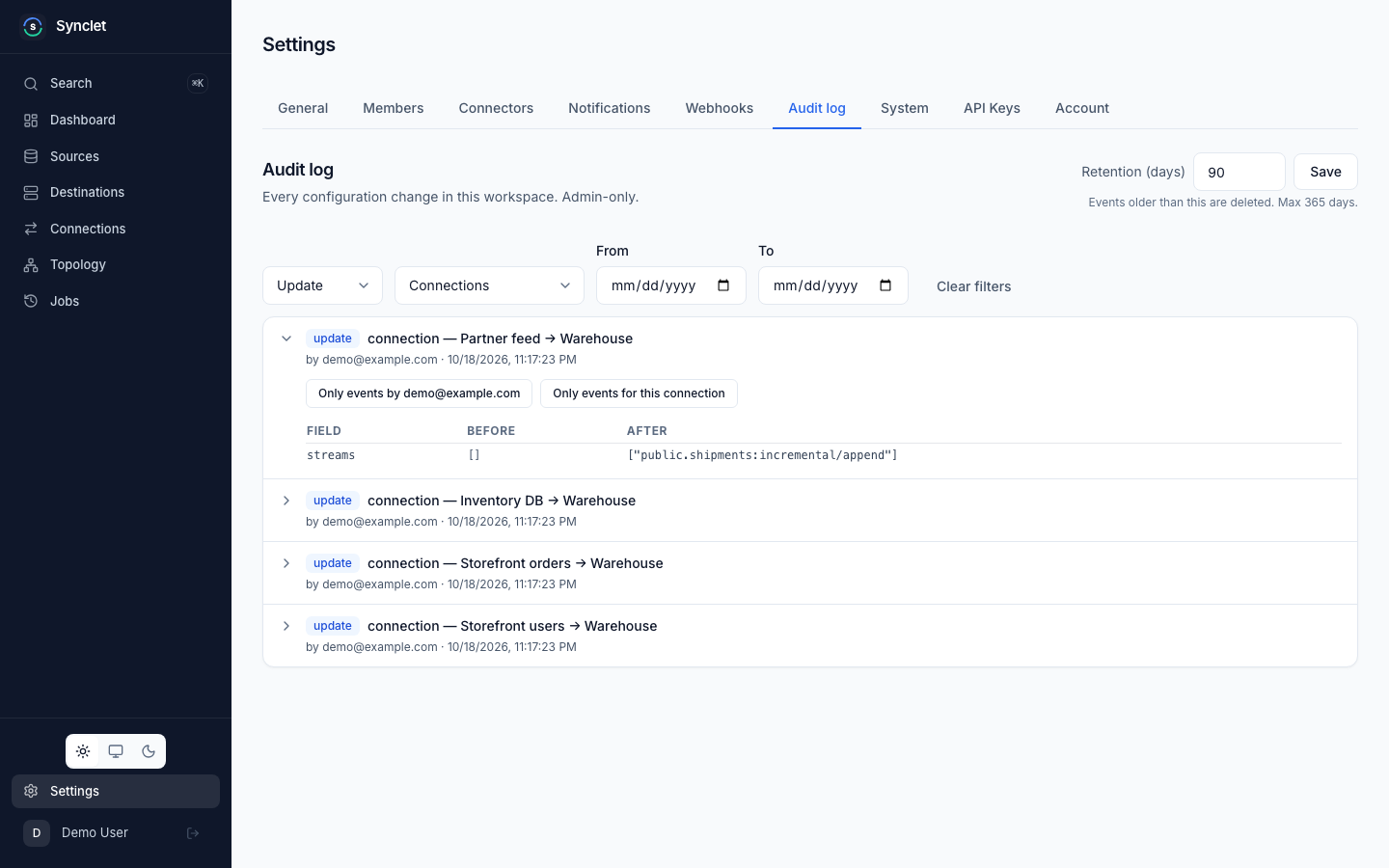
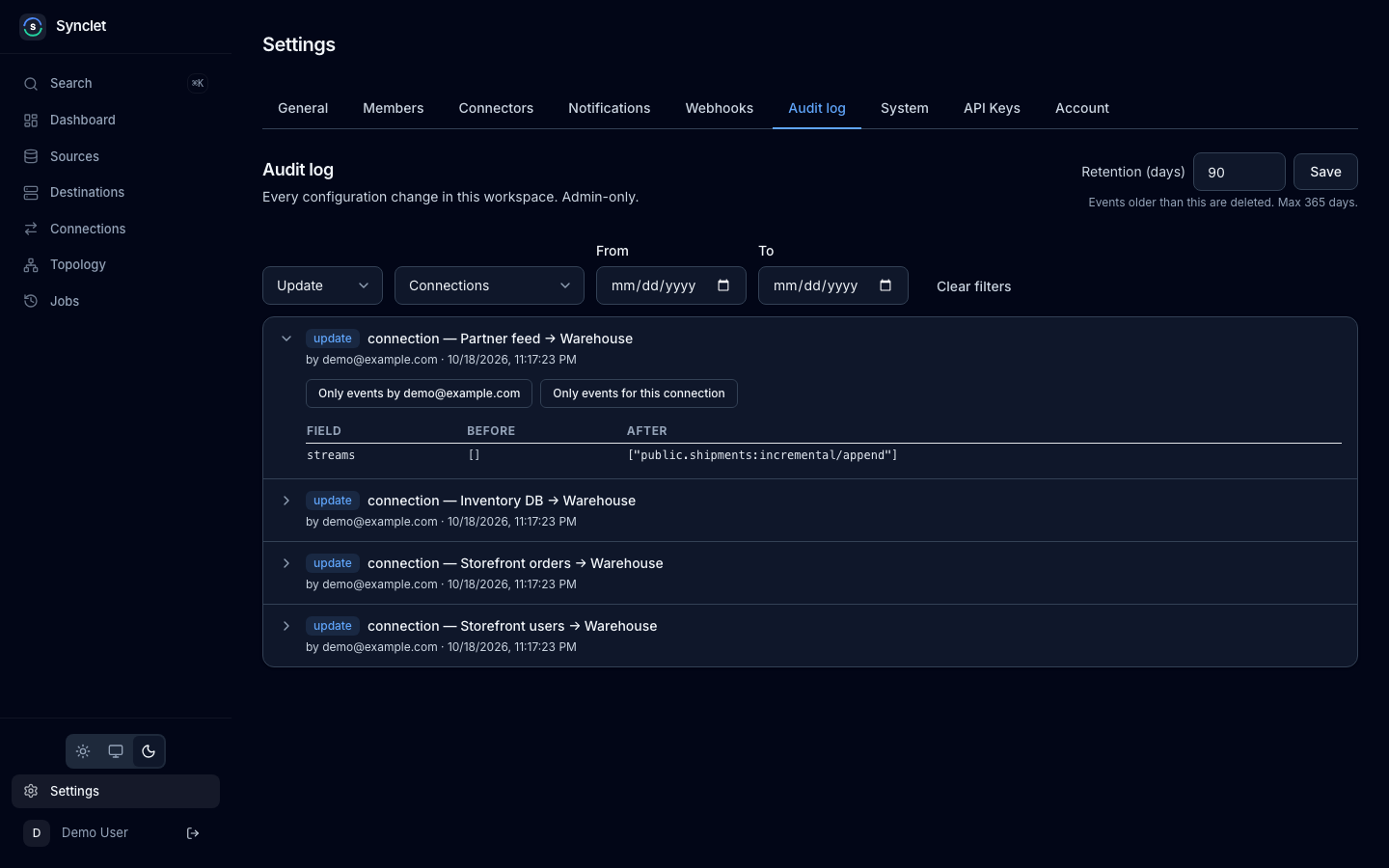
Section titled “Audit Log”Settings → Audit log lists every configuration change in the workspace, and logins and syncs, newest first. Only admins see it. Filter by action, resource type and date range; expand an event to see the fields it changed, before and after. The retention in days is set per workspace, up to the server’s AUDIT_RETENTION_MAX_DAYS (see Environment Variables).
Account Settings
Section titled “Account Settings”Account settings apply to your personal profile across all workspaces.
Profile
Section titled “Profile”Go to your avatar in the top-right corner and select Account Settings to update:
- Display name — How your name appears to other workspace members.
Password
Section titled “Password”To change your password:
- Go to Account Settings > Security.
- Enter your current password and the new password.
- Click Update Password.
If you signed up through OIDC, you may not have a password set. You can add one here to enable email/password login as a fallback.
Config Export & Import
Section titled “Config Export & Import”Synclet supports exporting and importing your workspace configuration as a YAML file. This is useful for backups, environment migration, and disaster recovery.
Exporting
Section titled “Exporting”- Go to Settings > General.
- Click Export Configuration.
- A YAML file is downloaded containing your workspace setup.
What is Included
Section titled “What is Included”| Included | Not Included |
|---|---|
| Sources (connector type, name, non-secret config) | Encrypted credentials and secrets |
| Destinations (connector type, name, non-secret config) | API keys |
| Connections (streams, schedule, retry, notifications) | Job history and sync state |
| Notification channels (type, name) | Webhook URLs and tokens |
| Workspace settings | Member list |
Importing
Section titled “Importing”- Go to Settings > General.
- Click Import Configuration.
- Select the YAML file.
- Review the changes and confirm.
Importing merges the configuration into the current workspace. Existing items with matching names are updated; new items are created.
Next Steps
Section titled “Next Steps”- Authentication & SSO — Set up OIDC providers and manage registration.
- Notifications — Detailed setup for Slack, Email, and Telegram channels.
- Workspaces & Roles — Understand the Admin, Editor, and Viewer roles.
Airbyte is a trademark of Airbyte, Inc. Synclet is not affiliated with, endorsed by or sponsored by Airbyte, Inc. Connector images keep their own licenses: see Connector licenses.