
Creating Connections
A connection is the core unit of data synchronization in Synclet. It links a source to a destination and defines what data to sync, how to sync it, and when.
What is a Connection?
Section titled “What is a Connection?”A connection ties together:
- A source — where data is read from.
- A destination — where data is written to.
- Stream configuration — which streams (tables/endpoints) to sync, with what sync mode, field selection, and mapping.
- A schedule — when syncs run (cron or manual).
- A retry policy — how failures are retried.
- A schema change policy — how schema changes from the source are handled (propagate, ignore, or pause the connection).
Each connection maintains its own sync state, job history, and health status.
Creating a Connection
Section titled “Creating a Connection”- Navigate — Go to Connections in the sidebar and click Create Connection.
- Select a source — Choose an existing source from the dropdown, or click Add Source to create one inline.
- Select a destination — Choose an existing destination from the dropdown, or click Add Destination to create one inline.
- Configure streams — Synclet displays the streams discovered from the source. For each stream, choose whether to enable it, select a sync mode, pick fields, and configure namespace mapping. See Stream Configuration for details.
- Set a schedule — Choose a cron schedule for automated syncs, or select Manual to only sync on demand. See Scheduling & Triggers for cron syntax and examples.
- Configure retry policy — Set the maximum number of attempts and the retry delay (in minutes) for failed syncs.
- Save — Review your configuration and click Save. The connection is created in an active, enabled state.
To receive alerts when syncs fail, create notification rules under Settings > Notifications. See Notifications.
Running a Sync
Section titled “Running a Sync”Manual Sync
Section titled “Manual Sync”Click the Sync Now button on any connection to trigger an immediate sync. This works regardless of whether the connection has a cron schedule.
Scheduled Sync
Section titled “Scheduled Sync”If a cron schedule is configured, Synclet automatically enqueues sync jobs according to the schedule. You do not need to take any action — syncs run in the background.
You can always trigger a manual sync in addition to the scheduled ones.
Editing a Connection
Section titled “Editing a Connection”- Go to Connections and click the connection you want to edit.
- Modify any setting — streams, schedule, retry policy, or notifications.
- Click Save.
Disabling and Enabling a Connection
Section titled “Disabling and Enabling a Connection”To temporarily stop syncs without deleting the connection:
- Open the connection.
- Click Disable.
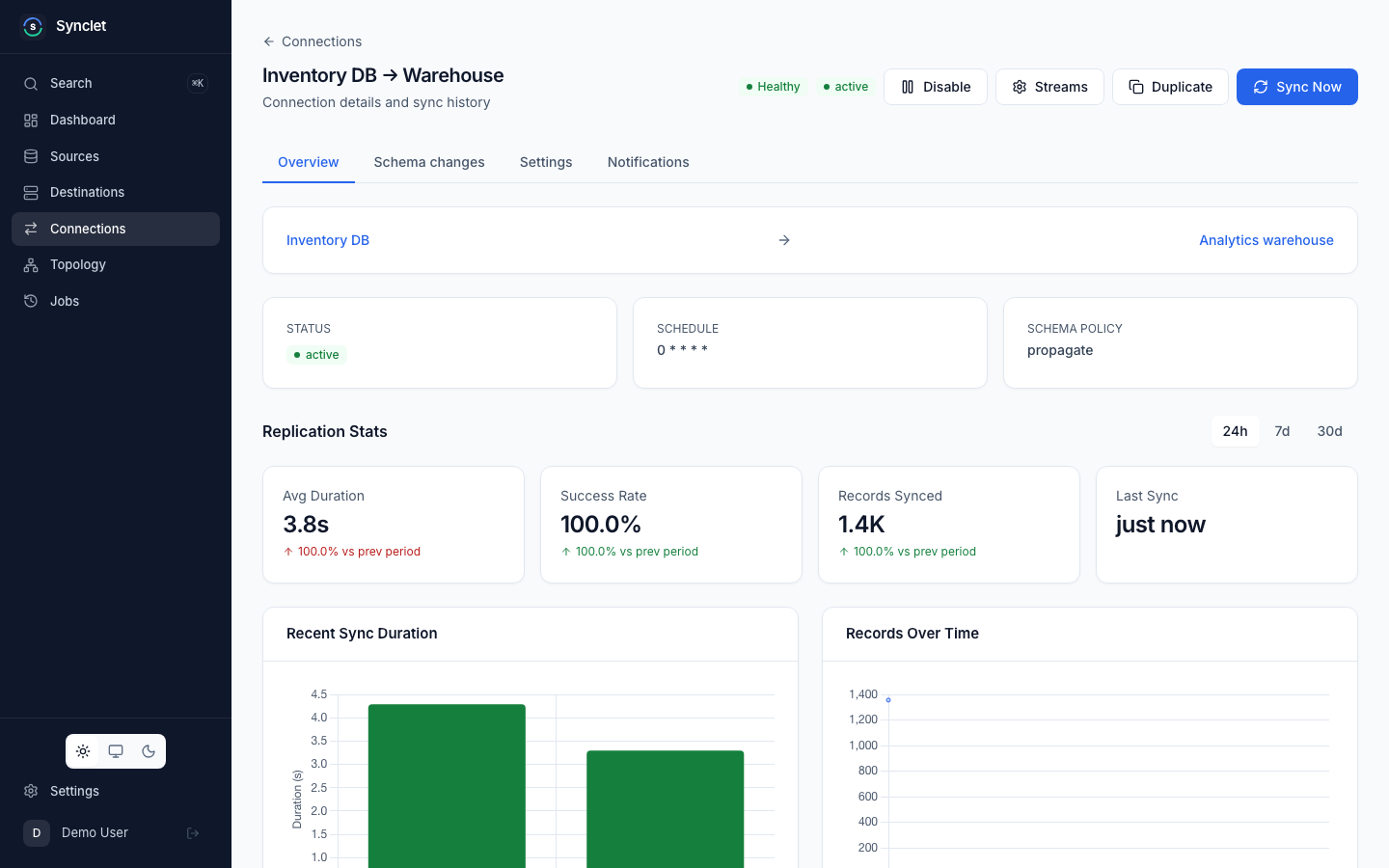
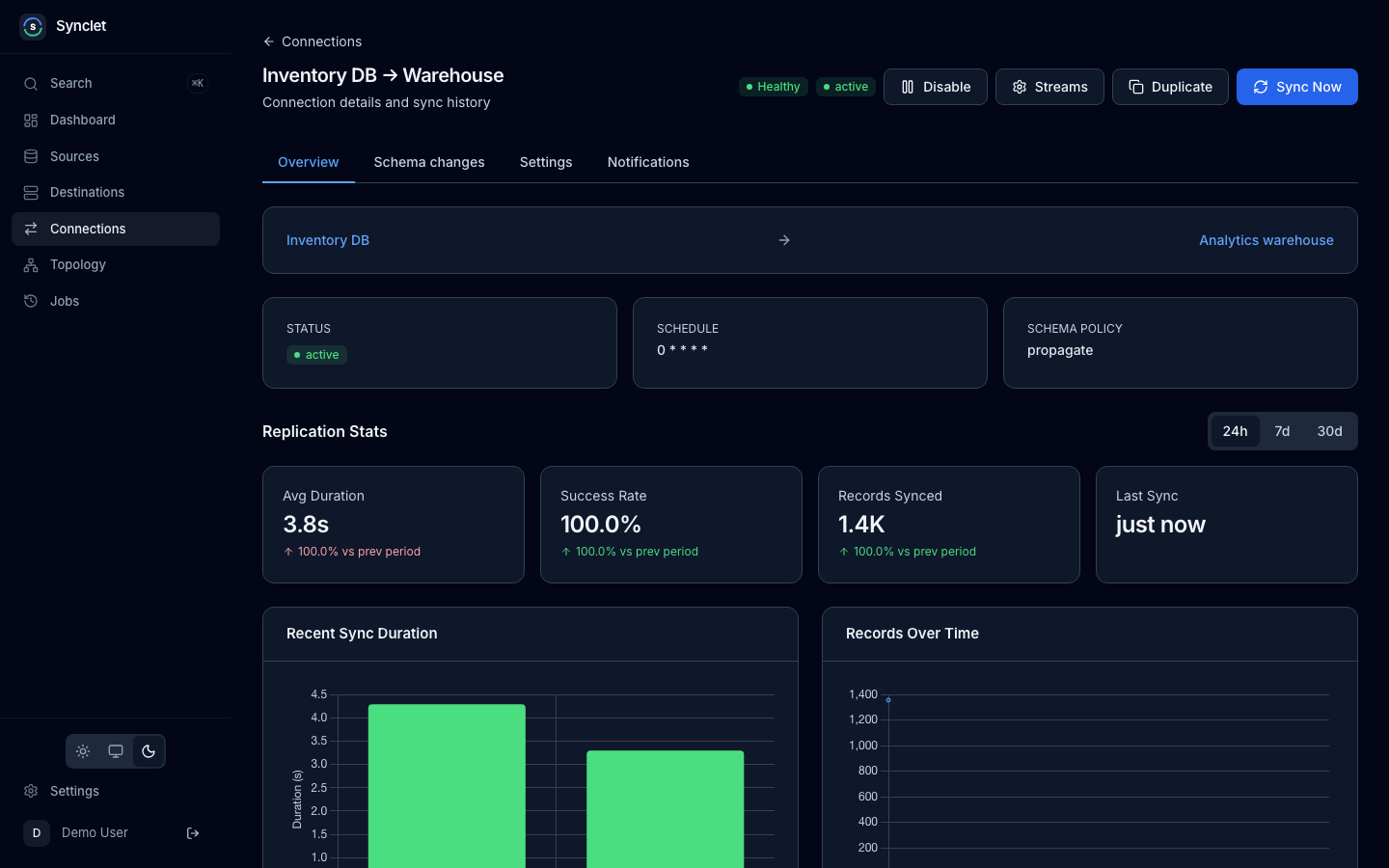
The connection retains all its configuration and job history. Scheduled syncs are paused. To resume, click Enable.
Deleting a Connection
Section titled “Deleting a Connection”- Open the connection you want to remove.
- Click Delete and confirm.
Deleting a connection removes its configuration, job history, and sync state. Data already written to the destination is not affected.
Connection Status
Section titled “Connection Status”Each connection displays a status:
| Status | Meaning |
|---|---|
| Active | The connection is enabled and syncs are running on schedule. |
| Inactive | The connection is disabled. No syncs are scheduled. |
| Paused | The connection is temporarily paused (e.g., due to schema changes when the schema change policy is set to pause). |
The dashboard shows an overview of all connection statuses so you can address issues quickly.
Next Steps
Section titled “Next Steps”- Stream Configuration — Deep dive into sync modes, field selection, primary keys, and cursors.
- Scheduling & Triggers — Learn about cron syntax, retries, and concurrency.
- Monitoring & Jobs — Track sync progress and diagnose failures.
Airbyte is a trademark of Airbyte, Inc. Synclet is not affiliated with, endorsed by or sponsored by Airbyte, Inc. Connector images keep their own licenses: see Connector licenses.