
Quick Start
This guide walks you through launching Synclet and creating your first sync from start to finish.
Quick Start (Docker Compose)
Section titled “Quick Start (Docker Compose)”The fastest path from zero to a working sync.
# Clone the repositorygit clone https://github.com/synclet-io/synclet.gitcd synclet
# Start Synclet and PostgreSQLdocker compose up -d
Once the containers are running, open http://localhost:8080 in your browser. Create your admin account when prompted.
Create Your First Sync
Section titled “Create Your First Sync”Step 1: Add a Source
Section titled “Step 1: Add a Source”A source is the system you want to pull data from.
- In the dashboard sidebar, click Sources, then Add Source.
- Search for a connector (e.g., “Postgres”, “Stripe”, “Google Sheets”) and select it.
- Fill in the required credentials and connection details.
- Click Test Connection to verify that Synclet can reach the source.
- Click Save once the test passes.
Synclet automatically discovers the available schemas and streams from your source.
Step 2: Add a Destination
Section titled “Step 2: Add a Destination”A destination is where your data will land.
- In the sidebar, click Destinations, then Add Destination.
- Search for a destination connector (e.g., “BigQuery”, “Snowflake”, “Postgres”, “CSV”).
- Enter the connection details and credentials.
- Click Test Connection to confirm write access.
- Click Save.
Step 3: Create a Connection
Section titled “Step 3: Create a Connection”A connection links a source to a destination and defines what to sync and when.
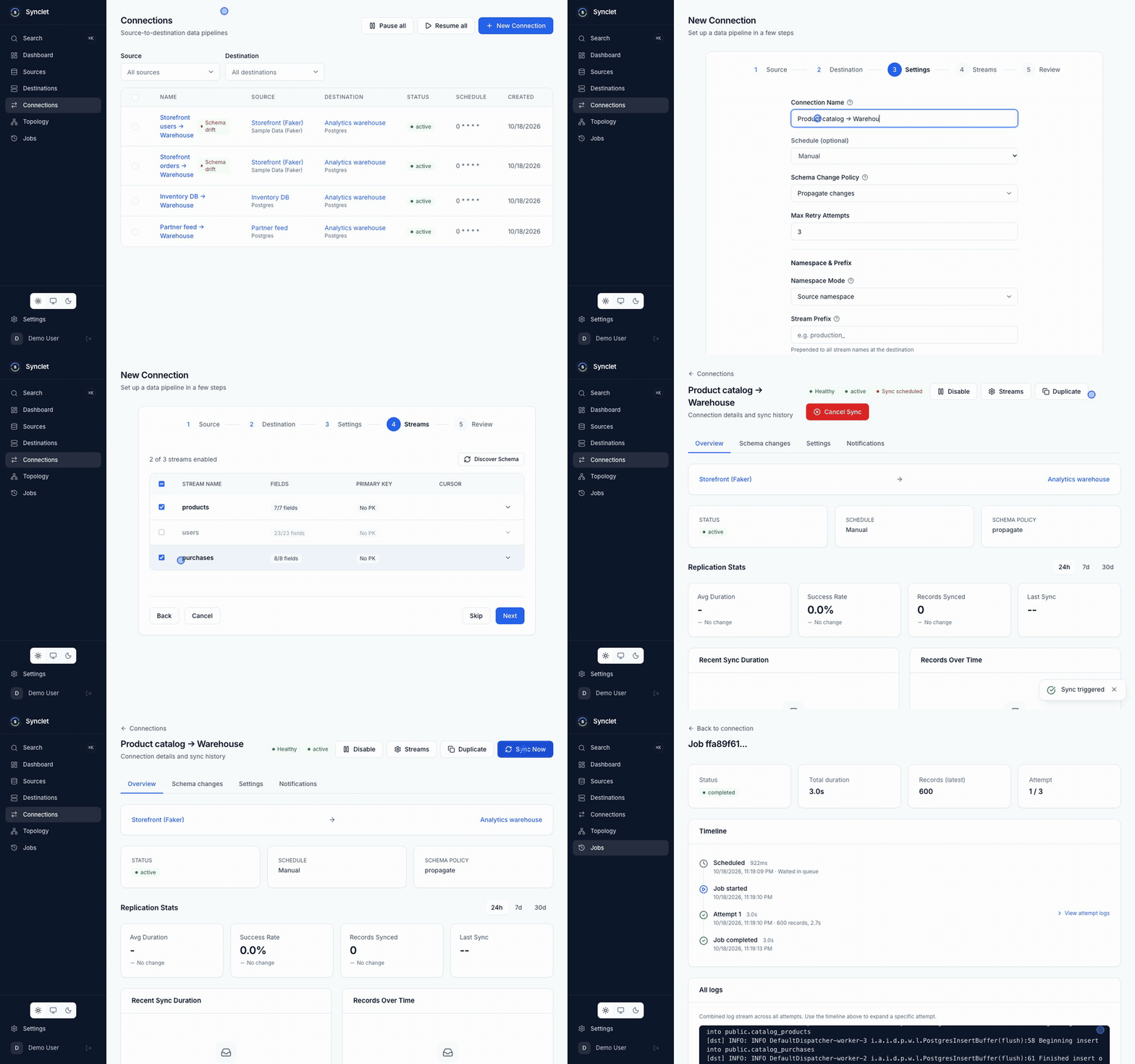
- In the sidebar, click Connections, then Create Connection.
- Select your source and destination from the dropdowns.
- Configure streams:
- Select which streams (tables/endpoints) to include.
- For each stream, choose a sync mode: Full Refresh (re-sync all data every run) or Incremental (only new and updated records).
- Optionally adjust field selection, destination namespace, or stream name.
- Set a schedule:
- Choose Manual to trigger syncs on demand.
- Or set a Cron schedule (e.g.,
0 */6 * * *for every 6 hours).
- Click Save.
Step 4: Run Your First Sync
Section titled “Step 4: Run Your First Sync”After saving the connection:
- Click Sync Now to start an immediate sync, or wait for the cron schedule to trigger it.
- Monitor progress in the Job History tab of the connection. You will see record counts, duration, and status for each run.
- If a sync fails, check the job logs for error details.
That’s it! Your data is now flowing from source to destination.
Alternative: Standalone Binary
Section titled “Alternative: Standalone Binary”If you prefer running Synclet without Docker Compose, download the pre-built binary and start it manually.
You still need:
- PostgreSQL 16 reachable at the
DB_DSNyou configure below (you supply this yourself — the binary does not bundle one). - Docker on the same host, so Synclet can spawn Airbyte connector containers during syncs.
# Download and extract the archive for your platform from# https://github.com/synclet-io/synclet/releases# (release tags are named `synclet-v<version>`; assets are# `synclet-v<version>-<os>-<arch>.tar.gz` plus a `SHA256SUMS` file.)tar -xzf synclet-v0.1.0-linux-amd64.tar.gzcd synclet-v0.1.0-linux-amd64
# Only DB_DSN is strictly required — Synclet generates a key and picks defaults# for the rest at first boot.export DB_DSN="postgres://user:password@localhost:5432/synclet?sslmode=disable"
# Run migrations and start the server./synclet migrate up./synclet server --standalone
Run directly on your machine with ENVIRONMENT unset or development, Synclet generates the two secrets for a local trial: an ephemeral AUTH_JWT_SECRET (every restart ends existing sessions) and a SECRET_ENCRYPTION_KEY persisted under <UserConfigDir>/synclet/encryption.key. Back that file up — losing it makes every stored connector credential unrecoverable. In any other environment, and inside a container or a Kubernetes pod, Synclet refuses to start until both are set.
For anything beyond a local trial, set both explicitly (openssl rand -base64 32 for each) so they survive restarts. See Environment Variables for the full list of defaults.
Open http://localhost:8080 and follow the same steps above to create your first sync.
See the Installation page for more details on binary and build-from-source options.
What’s Next
Section titled “What’s Next”- Configuration — Customize sync intervals, enable SMTP notifications, set up OIDC single sign-on, and more.
- Installation — Explore additional deployment options including Kubernetes with Helm.
Airbyte is a trademark of Airbyte, Inc. Synclet is not affiliated with, endorsed by or sponsored by Airbyte, Inc. Connector images keep their own licenses: see Connector licenses.