
Creating Connections
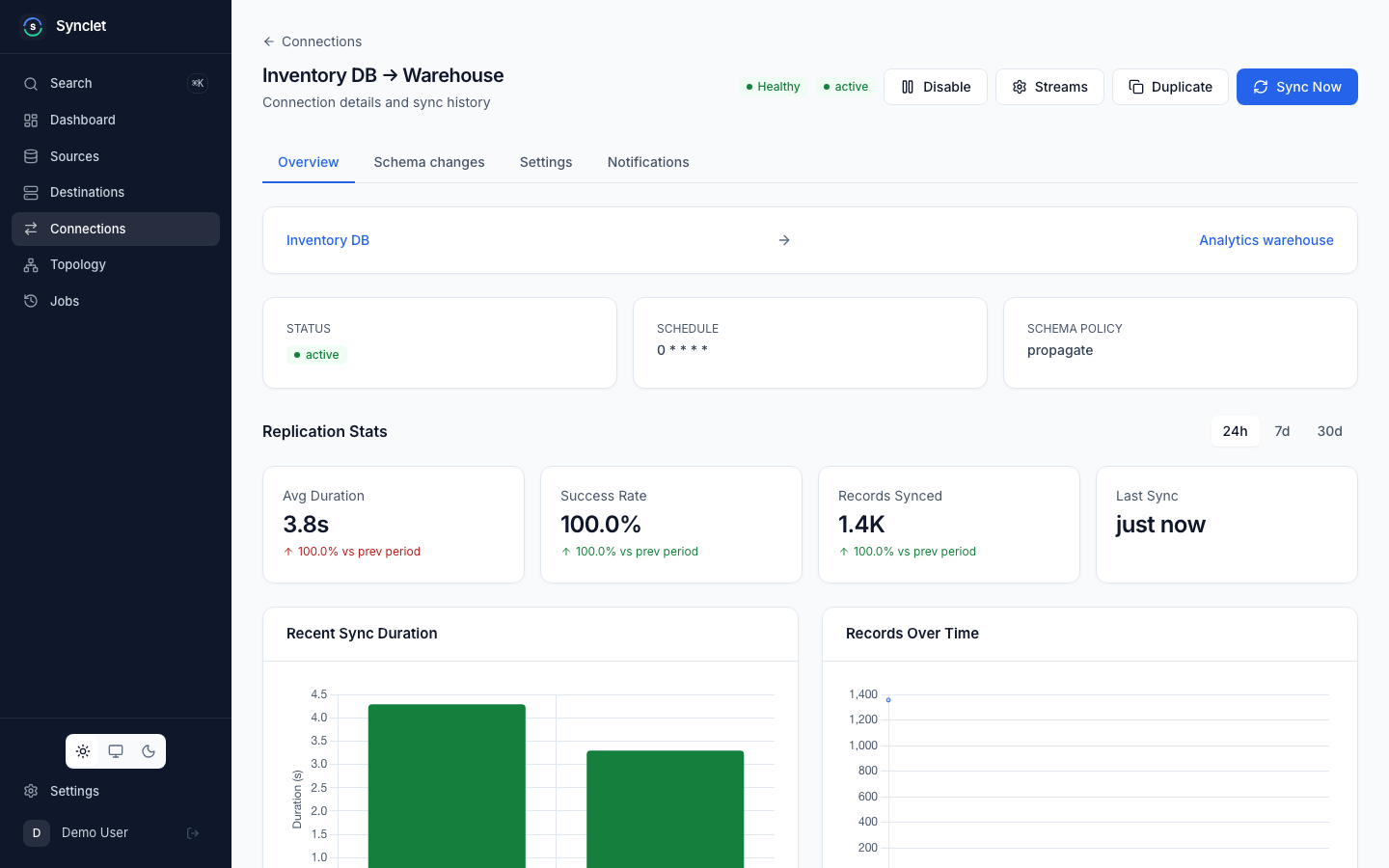
A connection is the core unit of data synchronization in Synclet. It links a source to a destination and defines what data to sync, how to sync it, and when.
What is a Connection?
Section titled “What is a Connection?”A connection ties together:
- A source — where data is read from.
- A destination — where data is written to.
- Stream configuration — which streams (tables/endpoints) to sync, with what sync mode, field selection, and mapping.
- A schedule — when syncs run (cron or manual).
- A retry policy — how failures are retried.
- A schema change policy — propagate, ignore or pause on source schema changes. See Schema Changes.
- Tags — labels for finding and filtering connections.
Each connection maintains its own sync state, job history, and health status.
Creating a Connection
Section titled “Creating a Connection”- Navigate — Go to Connections in the sidebar and click Create Connection.
- Select a source — Choose an existing source from the dropdown, or click Add Source to create one inline.
- Select a destination — Choose an existing destination from the dropdown, or click Add Destination to create one inline.
- Configure streams — Synclet displays the streams discovered from the source. For each stream, choose whether to enable it, select a sync mode, pick fields, and configure namespace mapping. See Stream Configuration for details.
- Set a schedule — Choose a cron schedule for automated syncs, or select Manual to only sync on demand. See Scheduling & Triggers for cron syntax and examples.
- Configure retry policy — Set the maximum number of attempts for failed syncs. Retries start right away, with no delay between attempts.
- Review — Check the summary and add tags if you want.
- Create — Click Create Connection. The connection is created in an active, enabled state.
Streams Are Required to Run
Section titled “Streams Are Required to Run”A connection syncs only once at least one of its streams is configured. A connection created without streams (through the API, or when you skip the stream step) shows Streams not configured in the connection list and header, with a link to its stream settings, and Sync Now is disabled until you save at least one stream. The scheduler skips it, a workflow cannot list it as a step, and TriggerSync, RunWorkflow and RerunWorkflowRun fail with failed_precondition. Saving an empty stream list is rejected: to stop a connection from syncing, disable it instead.
To receive alerts when syncs fail, create notification rules under Settings > Notifications. See Notifications.
Running a Sync
Section titled “Running a Sync”Manual Sync
Section titled “Manual Sync”Click the Sync Now button on any connection to trigger an immediate sync. This works regardless of whether the connection has a cron schedule, as long as it has configured streams.
Scheduled Sync
Section titled “Scheduled Sync”If a cron schedule is configured, Synclet automatically enqueues sync jobs according to the schedule. You do not need to take any action — syncs run in the background.
You can always trigger a manual sync in addition to the scheduled ones.
Run by a Workflow
Section titled “Run by a Workflow”A connection that is a step of a workflow has no schedule of its own. Adding it to a workflow turns its schedule off, and its Settings tab shows “This connection is run by” with the workflow’s name in place of the cron editor. Setting a schedule on it is rejected. Sync Now still works. When the connection is removed from its last workflow, or the workflow is deleted, it stays without a schedule until you set one.
Editing a Connection
Section titled “Editing a Connection”- Go to Connections and click the connection you want to edit.
- On the Settings tab, change the name, schedule, max attempts, schema change policy or tags, then click Save Settings.
- To change which streams sync and how, click the Streams button in the connection header, edit them, and click Save Configuration.
Tags label connections, for example by team (team:growth), environment (prod) or data domain (billing), so you can find them in a long list.
Adding Tags
Section titled “Adding Tags”Add tags in the Tags field on the review step of the connection wizard, or later in the General card of the connection’s Settings tab. Type a tag and press Enter, or pick one of the workspace’s existing tags from the suggestions. They are saved with the connection, or when you click Save Settings. Editors and admins can change tags; viewers see them read-only.
Synclet normalises tags before it stores them: it trims spaces, lowercases them, removes duplicates and sorts them. A tag must then:
- be 1 to 32 characters long;
- start with a letter or digit;
- contain only
a–z,0–9,_,.,:and-.
A connection can have up to 20 tags. An invalid tag or a 21st tag is rejected with a message under the Tags field, and nothing is saved.
Filtering by Tags
Section titled “Filtering by Tags”The Tags filter above the Connections list offers the tags used in the workspace. Select one or more, or click a tag in a connection’s Tags column to add it to the filter. A connection is listed only when it has every selected tag. The filter combines with the source and destination filters, and Clear filters removes them all.
The filter is kept in the page URL, one tags parameter per tag, so a filtered list can be bookmarked or shared:
/connections?tags=prod&tags=team:growthThe API filters the same way: ListConnections takes a tags list and returns connections that have all of them, and ListConnectionTags returns each tag in use with the number of connections that carry it.
Tags in Config Export
Section titled “Tags in Config Export”Config export writes each connection’s tags under tags:
connections: - source: Production Postgres destination: Analytics BigQuery schedule: "0 * * * *" max_attempts: 3 enabled: true tags: [billing, prod]On import, a connection entry with a tags key replaces the connection’s tags with that list; an entry without it keeps the tags the connection already has. A connection without tags is exported without the key.
Disabling and Enabling a Connection
Section titled “Disabling and Enabling a Connection”To temporarily stop syncs without deleting the connection:
- Open the connection.
- Click Disable.
The connection retains all its configuration and job history. Scheduled syncs are paused. To resume, click Enable.
Deleting a Connection
Section titled “Deleting a Connection”- Open the connection you want to remove.
- Click Delete and confirm.
Deleting a connection removes its configuration, job history, and sync state. Data already written to the destination is not affected.
A connection that is a step of a workflow cannot be deleted: the delete fails with “the connection is a step of a workflow; remove it from the workflow first”. Remove the step from every workflow it is in, then delete the connection.
Connection Status
Section titled “Connection Status”Each connection displays a status:
| Status | Meaning |
|---|---|
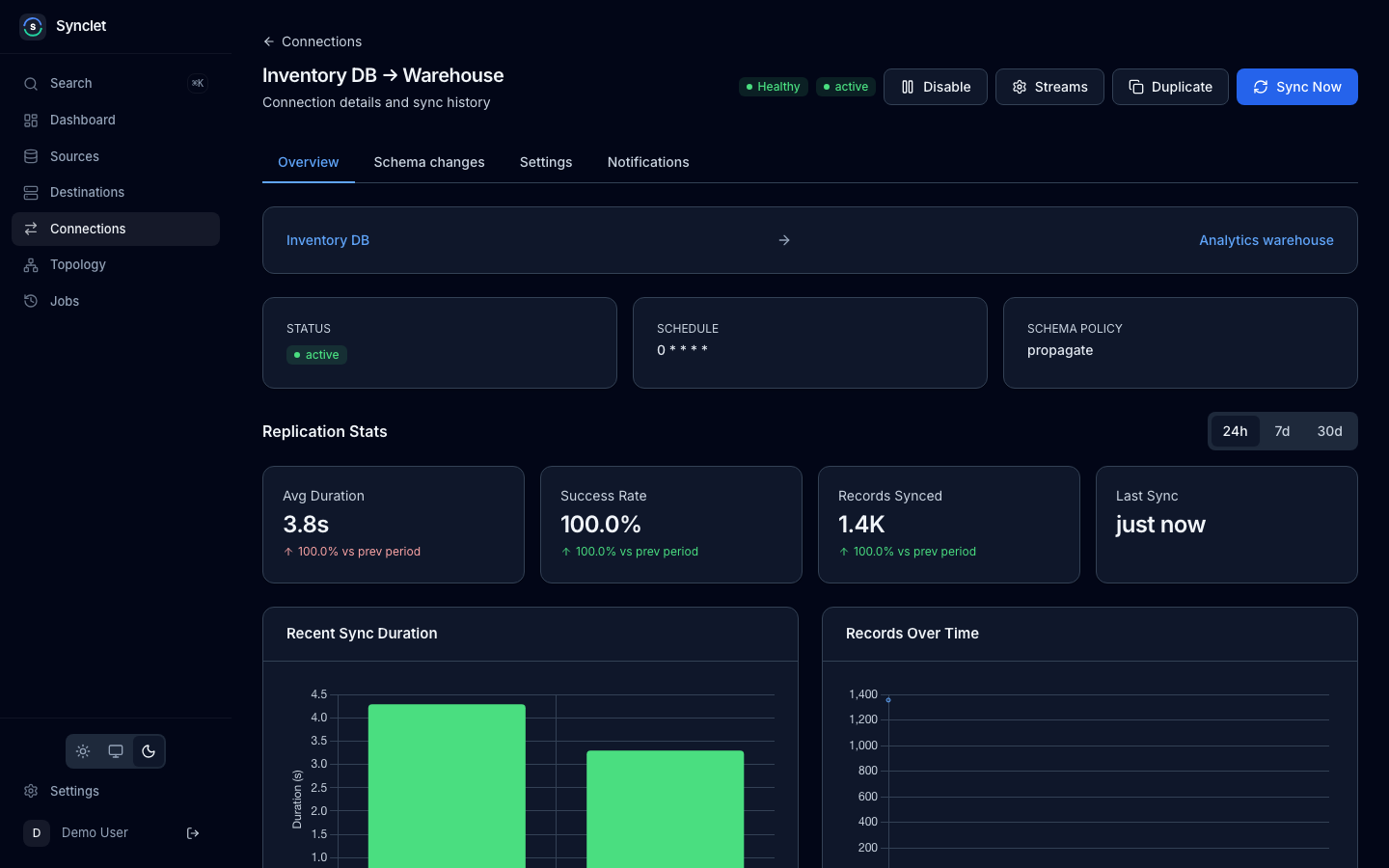
| Active | The connection is enabled and syncs are running on schedule. |
| Inactive | The connection is disabled. No syncs are scheduled. |
| Paused | Synclet paused the connection because its transforms no longer compile against the source’s latest schema. No syncs are scheduled until you fix them and click Enable. See Paused by Synclet. |
The dashboard shows an overview of all connection statuses so you can address issues quickly.
Next Steps
Section titled “Next Steps”- Stream Configuration — Deep dive into sync modes, field selection, primary keys, and cursors.
- Schema Changes — Pending schema changes, policies, and connections paused by Synclet.
- Scheduling & Triggers — Learn about cron syntax, retries, and concurrency.
- Workflows — Run connections in order as a graph of steps.
- Monitoring & Jobs — Track sync progress and diagnose failures.
Airbyte is a trademark of Airbyte, Inc. Synclet is not affiliated with, endorsed by or sponsored by Airbyte, Inc. Connector images keep their own licenses: see Connector licenses.